Who can do this:
HR Manager
Administrator
Important!
Work profiles have been renamed as leave profiles. The working rota functionality previously configured here has moved to the new work patterns feature; everything relating to leave, sickness, and entitlements remains unchanged and stays in leave profiles. See Guide: Work patterns for the new feature, or Guide: Leave profiles for what's changed.
Delete a leave profile
You can delete unwanted or unused leave profiles if they have no employees associated with them. Leave profiles with no employees can be found with the Unassigned toggle.
Go to Leave > Admin & Config > Leave Profiles and select the leave profile you wish to delete.
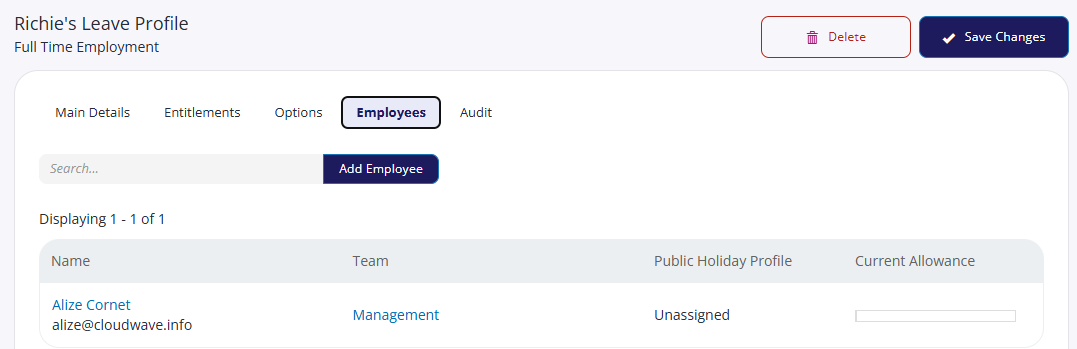
Click the Employees tab to check there are no users still associated with it. If there is, you will need to change the employees' leave profile. See How do I change an employee’s leave profile?
Once the leave profile has no employees, you can click Delete, then confirm.
Restoring a leave profile
Deleted leave profiles will show if you toggle the view, this will allow you to restore previously deleted leave profiles if you need.
Go to Leave > Admin & Config > Leave Profiles and change the view to Deleted.
.png)
Click the Restore button on the right-hand side of the leave profile you wish to restore, then Yes to confirm.