About pay grades
If your organisation uses pay grades, you can assign a pay grade and spine point to an employee. You can see their current, upcoming and past assignments.
If you don't see a Pay grades tab, your organisation doesn't use pay grades.
To view an employee's pay grades, go to their record, click the Salary & allowances tab, then click the Pay grades tab.
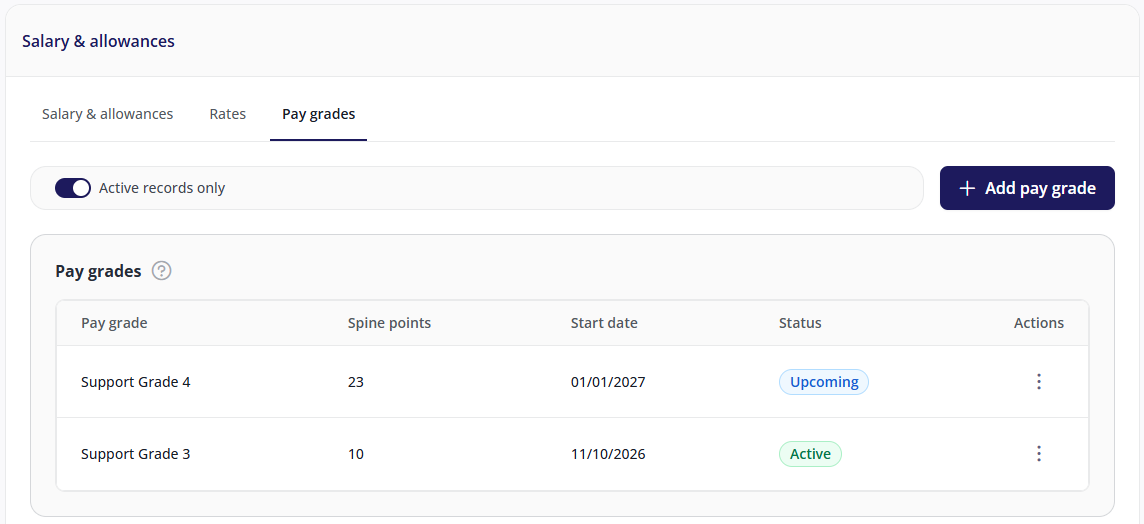
Viewing pay grades
By default, only the current assignment is shown. To see upcoming and past assignments, click the Active records only toggle to turn it off.
Column | Shows |
|---|---|
Pay grade | The grade assigned to the employee. |
Spine points | The spine point within that grade. |
Start date / End date | When the assignment applies. |
Status | Active, Upcoming or Inactive. |
An employee can only have one pay grade assignment at a time.
Assigning a pay grade
On the Pay grades tab, click Add pay grade.
Select the Pay grade.
Select the Spine point. The spine points available depend on the pay grade you selected.
Click Continue.
Enter the Start date and, if the assignment will end on a known date, the End date.
Click Save & continue.
If the dates overlap another assignment, you'll see the message "Assignment date range must not overlap another assignment". Change the dates so they don't overlap, or end the existing assignment first.
Changing a pay grade
You can change the dates, pay grade or spine point of any assignment, whether it's active, upcoming or inactive.
Click the Actions icon (⋮) next to the assignment.
Select to either edit the dates / pay grade / spine point, or to delete it.