About salaries, allowances and rates
Use the Salary & allowances section of an employee's record to set up the fixed payments and pay rates they receive. It has these tabs:
Salary & allowances: annual salaries and fixed payments, such as housing, travel or phone allowances.
Rates: rates paid per unit, such as hourly rates for overtime, night or weekend work.
Pay grades: This tab is only shown if your organisation uses pay grades. For more information, see Pay grades.
To access, open a payroll, search for and select the employee's record, then click the Salary & allowances tab.
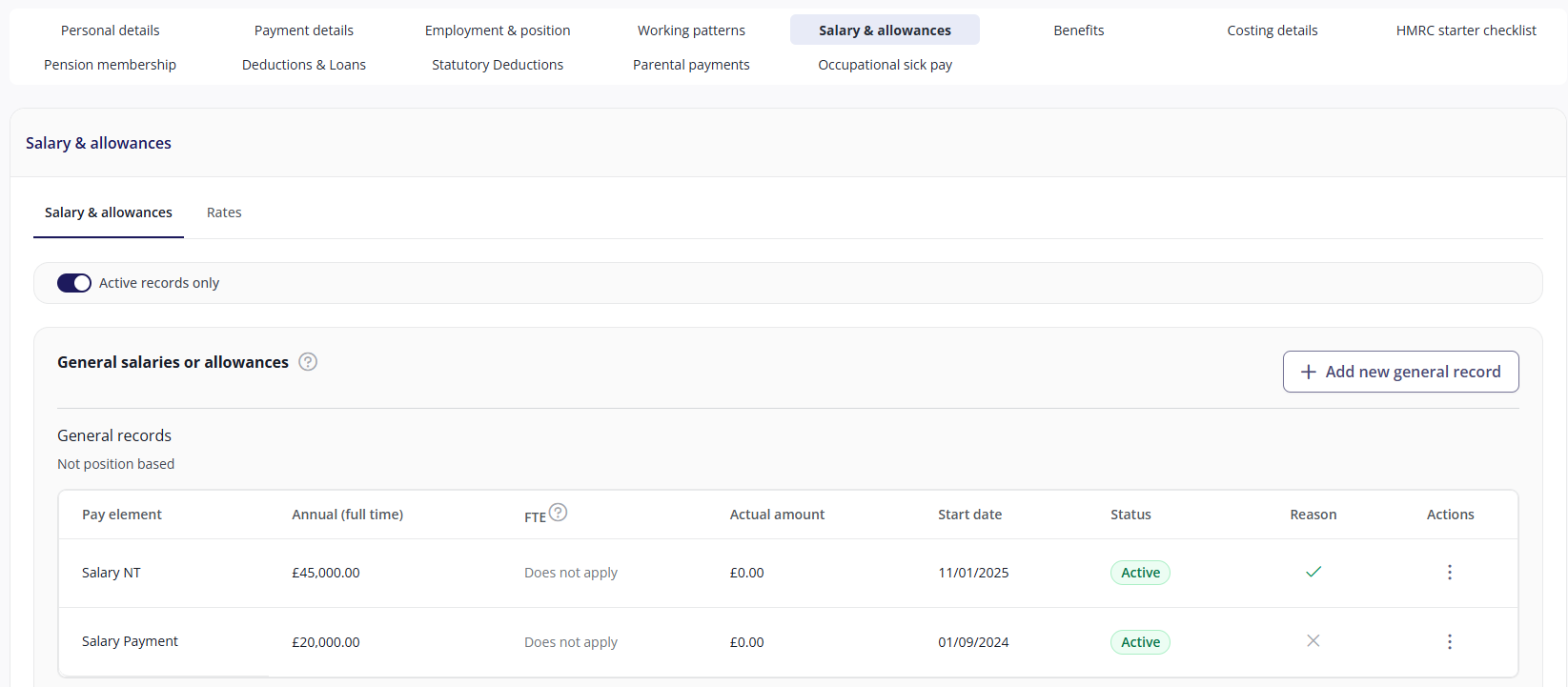
Hover over any ticks in the Reason column to see the reason for the change.
General and position records
The Salary & allowances and Rates tabs are each split into two sections:
Section | Use for |
|---|---|
General salaries or allowances / General rates | Payments that belong to the employee, not to a specific position. |
Position salaries or allowances / Position rates | Payments linked to one of the employee's positions. Each position is listed separately, even if it has no active records. |
The position sections only appear if your organisation uses positions. If an employee receives a salary / allowance for a specific position, you should record it against that position, otherwise record it as a general salary / allowance.
Some position records are set up automatically from the position itself. You can't change these here and they have no Actions menu. To change them, update the position.
Viewing records
By default, Active records only is turned on, so you only see payments that currently apply. To also see upcoming and past records, click the Active records only toggle to turn it off.
Each record has a status:
Status | Meaning |
|---|---|
Active | The payment currently applies |
Upcoming | The payment starts on a future date |
Inactive | The payment has ended |
On the Salary & allowances tab:
Annual (full time) is the annual amount for a full-time employee.
FTE (full-time equivalent) shows how the employee's hours compare to full-time hours. 1 means full time and anything between 0 and 1 means part time.
Actual amount is the annual amount the employee receives, based on their FTE.
Some pay elements show Does not apply in the FTE column. These are paid at the full amount whatever the employee's hours.
Adding a salary, allowance or rate
On the Salary & allowances or Rates tab, click the relevant add button:
If you're adding a position record, select the Position, then click Continue.
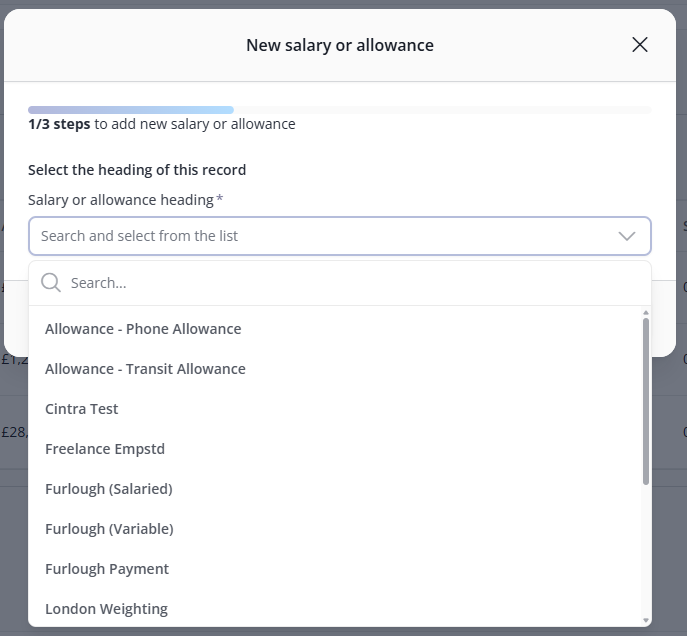
Select the Salary or allowance heading or Rate heading, then click Continue. The headings available depend on how your payroll is set up.
Enter the amount:
For a salary or allowance, enter the annual full-time Amount. The FTE is filled in automatically and used to work out the amount paid each period.
For a rate, enter the Rate/unit.
Click Continue.
Enter the Start date. If the payment will stop on a known date, also enter the End date.
Click Save & continue.
Changing or removing a record
Click the Actions icon (⋮) next to the record, then select an option:
Option | Use it to |
|---|---|
Add new amount with new effective date | Change the amount from a future or past date, for example for a pay rise. The new amount is added below the existing one, which stays in the employee's history. |
Edit dates or current amount | Correct the dates or amount of an existing record, for example if it was entered incorrectly. |
Delete | Remove a record that was added in error. |
Note: You cannot add overlapping dates for the same salary or allowance heading. Therefore, you must add an end date for the previous value before adding a new one.
When options aren't available
Delete is unavailable if the pay element has already been processed in a previous payroll. To stop paying it, edit the record and set the amount to zero.
Add new amount with new effective date is unavailable for pay elements calculated during the payroll run, such as overtime rates worked out from the employee's basic rate. You can't set these amounts directly.