Who can do this:
HR Manager
Administrator
Have you previously used Cintra People Payroll or Cintra iQ to add employees?
In the integrated version of Cintra People, HR is the “master” database for employee records. This means all new employees must be created in HR first: their details then flow automatically into Payroll.
If you previously added employees directly in Cintra People Payroll or Cintra iQ, the steps below replace that process. Once you create an employee in HR, their record will be available across both HR and Payroll.
You can add employees to Cintra People HR either one at a time or in bulk. This guide takes you through adding employees one by one.
Add a new employee
Note: If you’re adding an employee who was previously employed, then you must archive their original employee record is archived before creating a new one.
From the left side menu, select Add Employee. The tabs underneath your blue licence count will guide you through the key steps of adding an employee.
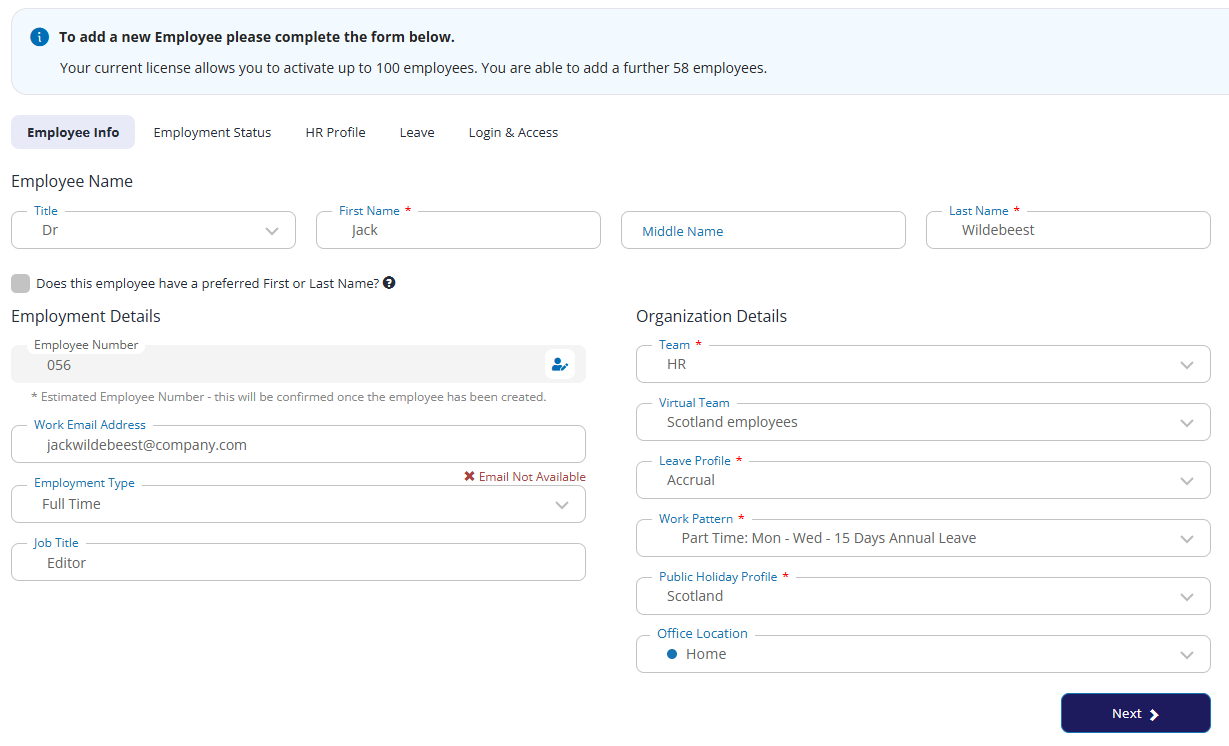
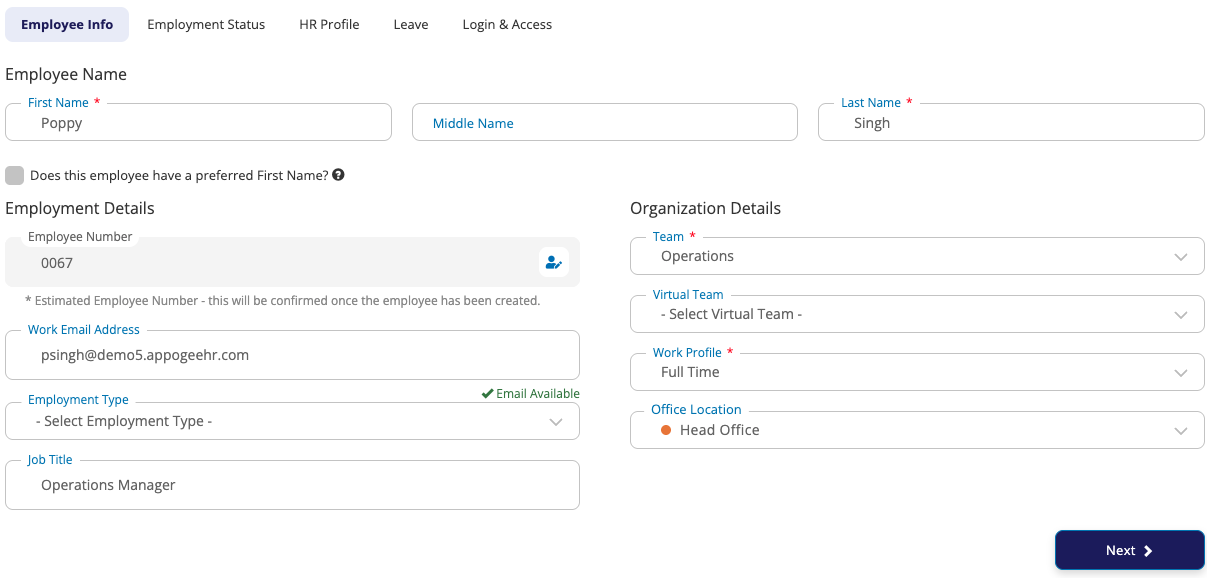
Employee Info
On the Employee Info tab, you can enter the employee’s email address, employment type (Permanent, Temporary, or Casual), job title and office location (which can include home). You must also enter information into the following fields:
Division: If your work in a larger organisation and this feature has been activated, you must select the organisational unit the employee belongs to. See Divisional units.
Team / Virtual Team: The team within the division that the employee is assigned to. See Setting up and editing teams.
Leave Profile: Defines the employee’s holiday and sickness entitlement. See Guide: Leave profiles.
Work Pattern: Defines the employee’s working rota. See Guide: Work patterns.
Public Holiday Profile: The public holiday schedule applied to the employee, typically based on their working location. See managing public holidays.
Office Location
The Employee Number will be auto generated for you, this can be edited if you have the override option switched on.
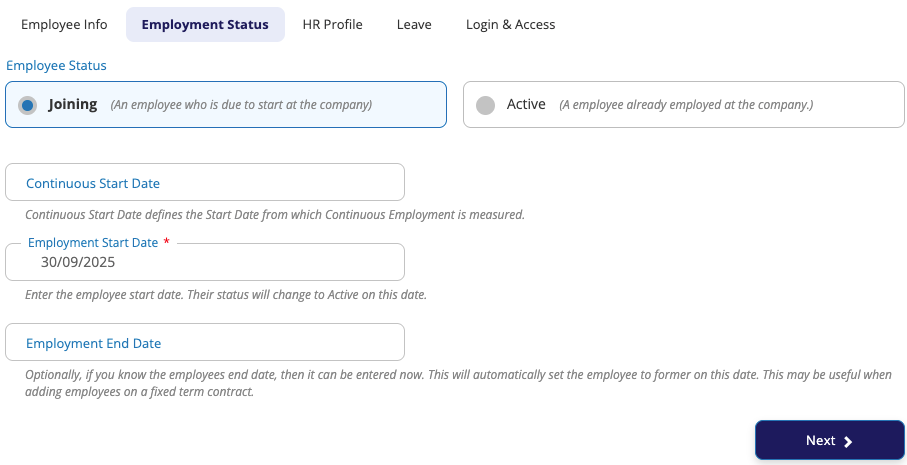
Employment status
If you set the employee’s status as Joining, you'll need to set the Employment Start Date in the future.
If you set the employee’s status to Active, select a start date as today or in the past.
Warning: You cannot add an employee’s start date more than 42 days before today’s date
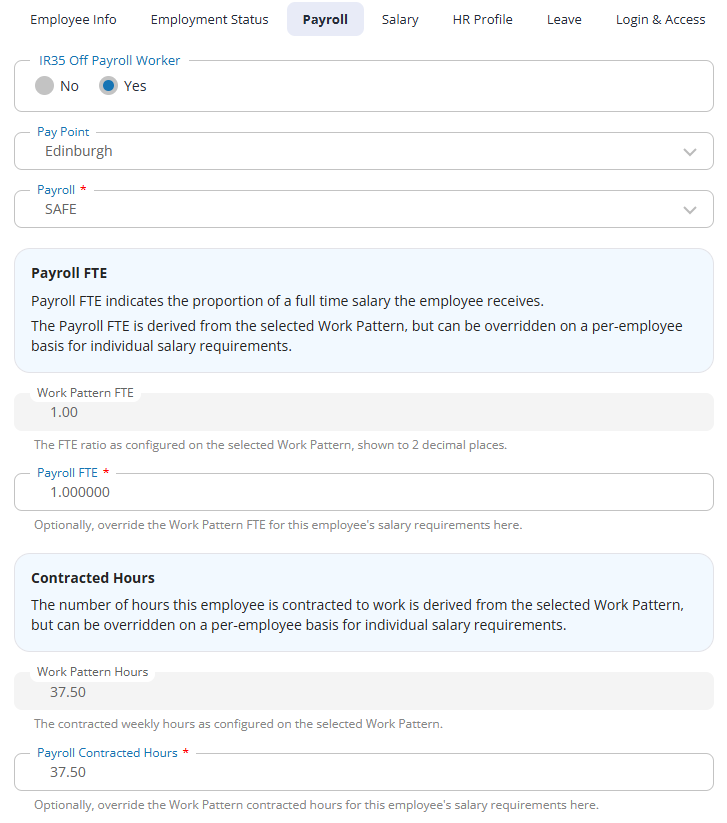
Payroll
If you use Cintra People to manage your payroll, the following fields control how each employee is set up within the payroll system.
IR35 Off Payroll Worker: indicates whether the employee is engaged as an off-payroll worker under IR35 rules.
Pay Point: pay points are used to group and filter employees, e.g. by location or department.
Payroll: the payroll the employee is to be paid through. All employees must be assigned to a payroll. For employees who aren't paid through the system, assign them to a dummy payroll.
Work Pattern FTE: the full-time equivalent ratio as configured on the work pattern you selected in the Employee info tab. This is read-only.
Payroll FTE: the proportion of a full-time salary the employee receives. Defaults to the Work Pattern FTE, but you can override for each employee.
Work Pattern Hours: the contracted hours as configured on the employee's work pattern. This is read-only.
Payroll Contracted Hours: the number of hours the employee is contracted to work. Defaults to the work pattern hours, but you can override for each employee.
Salary
If you use Cintra People to manage your payroll, you can set the employee’s salary. If your organisation uses pay grades, you must choose whether to assign a pay grade or enter their pay manually.
.png)
Either select Yes and choose a pay grade from the drop-down. Some pay grades have spine points, which are fixed steps within that range. If the grade you select has a spine point, you will need to select one as well.
Or select No to enter their salary manually.
To add further salary, allowance, or rate information, see Find and edit an employee in HR.
Adding a new salary, allowance, or rate
Choose whether you adding the salary / allowance / rate against the employee or one of their positions (if available).
Click the relevant Add New button.
Select the appropriate salary / allowance / rate from the drop-down.
Enter the date when the employee started to receive the salary or allowance. If they no longer receive it, enter the end date as well.
Enter the pay value received (either per hour or per annum).
Click Save & Continue.
HR Profile (HR Essentials & Advanced Customers only)
If you have HR Essentials or HR Advanced, you can add additional HR-related fields to the Add Employee process. To set this up, please read the information in the section below.
Complete any fields on the HR Profile tab with information you have about the new starter.
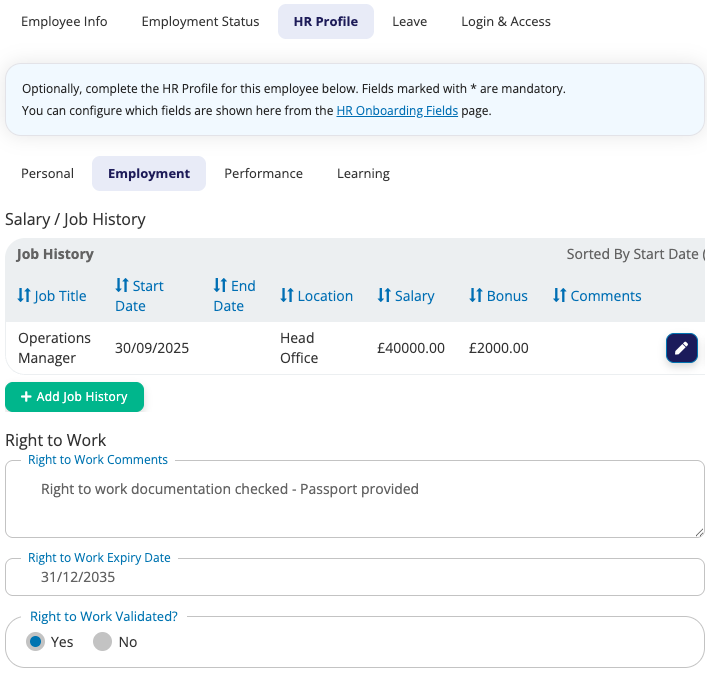
Leave
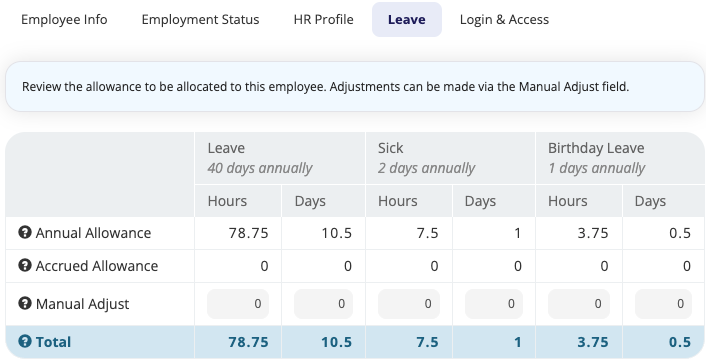
The Leave tab will show you how much Leave, Sick & Custom Allowances have been allocated to the new starter based on your settings & the leave profile they are being added to.
Review the amounts and use the Manual adjust tool if necessary.
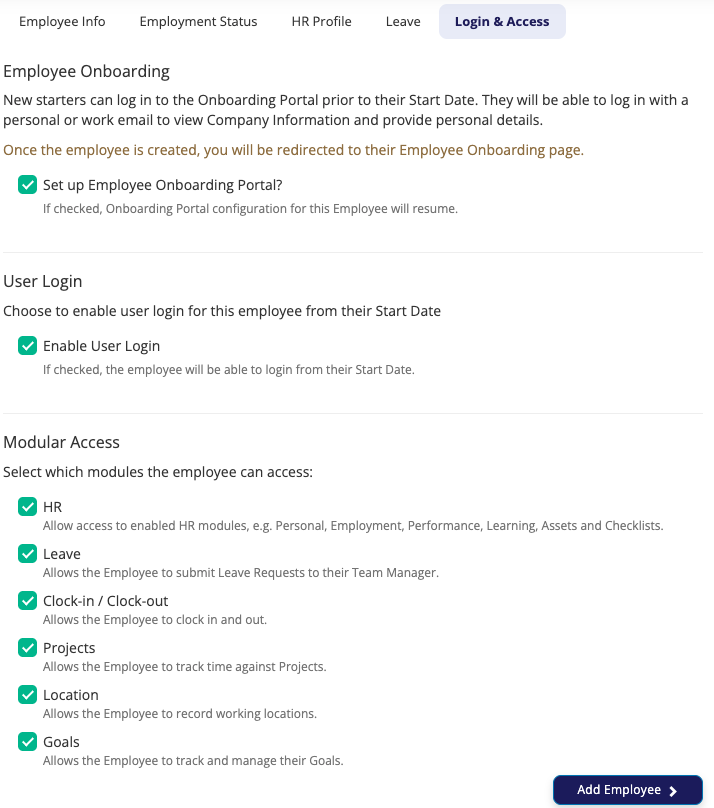
Access
Click which modules you would like the new starter to have access to and enable their login.
For customers with HR Advanced, you can click through to set up the Onboarding portal.
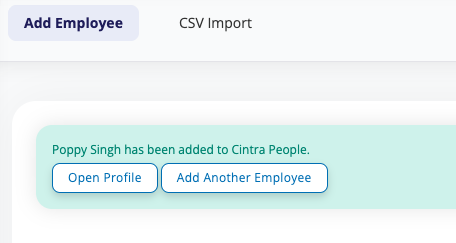
Once complete, you'll see a message to confirm the employee has been added to the system.
Adding users to Expenses
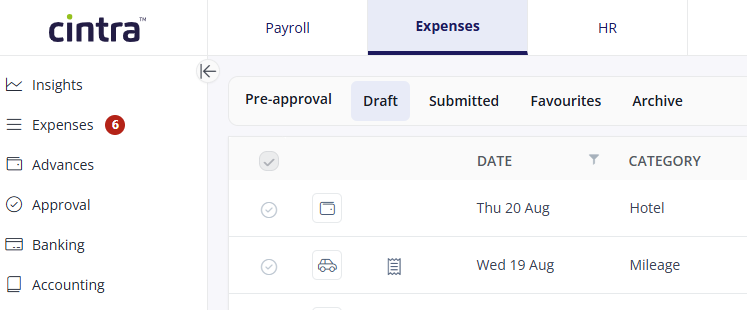
If your organisation uses Expenses, changes made when you add or edit an employee are synced to Expenses automatically every hour. You can also sync manually within the user list by going to the Expenses tab, then Setup > People > Actions > Sync Users.
The following details are sent to Expenses:
First name.
Surname.
Email address.
Postcode.
Line manager (if assigned).
Whoever is assigned as the employee’s approver in HR will also be assigned as the approver of their expenses in Expenses, although this can be edited within the Expenses tab. See Creating and editing Expenses users.