This administrator guide explains how to get Expenses ready for your users for the first time.
Before you start, it helps to have the following to hand:
The people who'll help you set up the system, and their roles (administrator, finance or auditor)
A list of your users, if you plan to import them
Your company, financial and accounting details
How you want expenses to be approved, for example by line manager or by value
The expense categories, VAT codes and tags (such as departments or cost centres) your finance system uses
Details of your vehicles and credit cards, and how you'll import card transactions
Expand each step to see what to do. When you've finished it, tick Mark this step as complete or click Next step.
Your progress is automatically saved in this browser, so you can come back to it later.
All links open in a new tab, so you won't lose your place.
Getting started: welcome and logging in
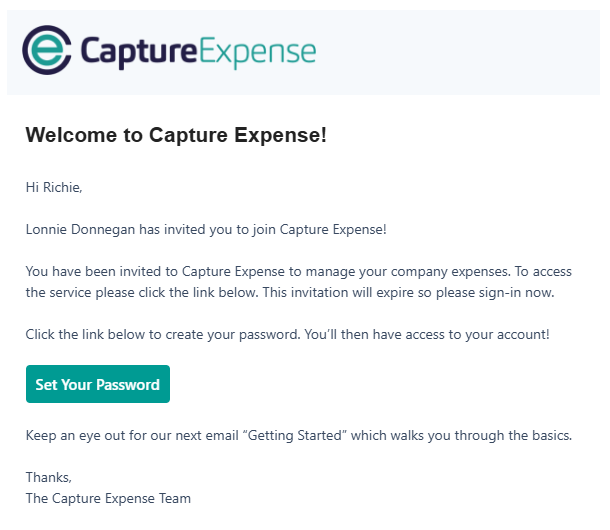
As an administrator, you'll receive a welcome email from Capture Expense. Click the link in the email to set your password and log in. Once you've logged in, you'll see the user dashboard and you're ready to set up your system. Find out more (opens in a new tab) |
|
Creating user accounts
Start by adding the people who'll help you set up the system, such as other administrators, finance users or auditors. You can add the rest of your users in the next step.
When you create a user, choose the options that match their role:
Active: ensures the user is displayed in the system
Administrator: allows the user to configure settings
Finance: allows the user to see all expenses and credit card transactions, and to run reports and exports
Auditor: gives read-only access to financial data and reports
Once you've created your users, send them a welcome email so they can log in.
Find out more (links open in a new tab):
Adding and importing employees
Next, add the rest of your users. Add them one at a time if you only have a few, or import them using a template if you have a lot.
To add users one at a time, click + Person.
To add lots of users at once, download the template, fill it in, then import it back into Expenses.
Find out more (links open in a new tab):
Company settings
Record your organisation's details in company settings. Fill in all the information you know in each of these areas:
Export and accounting details, which depend on the finance system you use
System behaviour: other options you can turn on or off, depending on your requirements
Find out more (links open in a new tab):
Approval workflow
Approval workflows control how expenses are approved in your organisation. Each workflow can have multiple stages, approvers and rules, and you might need several to meet your organisation's requirements.
Before you create them, think about questions such as:
Should the line manager always approve expenses?
Should approval depend on the value of the expense?
Do you need a multi-stage approval process?
Once you've created your workflows, assign them to your users, either one at a time or in bulk using a template.
Find out more (links open in a new tab):
Expense categories
Categories classify expenses, mileage and timesheets, so your organisation can track and report on spending by type. Capture Expense includes a set of default categories to get you started, which you can add to or customise.
To add a few categories, create them manually.
To add lots of categories, import them using a template.
Find out more (links open in a new tab):
VAT
Create VAT records and map VAT codes to your accounting system.
To add a few VAT records, create them manually.
To add lots of VAT records, import them using the template.
Find out more (links open in a new tab):
Tags
Tags are a flexible way to classify users and expense categories, for example by department, location or cost centre. They're used for accounting and reporting, and to restrict access to expense categories.
First create the tag type, then add values to it to represent the groups or codes your business uses.
If you have a lot of tags, it's quicker to import them.
Find out more (links open in a new tab):
Vehicles
Vehicle records let you assign fuel rates to employees and keep track of mileage logs. Expenses supports company cars, car allowances and private vehicles, as well as carbon tracking.
Expenses includes a list of preset vehicles with their HMRC approved rates (for private and company vehicles), which you can add to or edit.
You can use the HMRC approved rates, which are kept up to date automatically every quarter, or set your own.
Find out more (links open in a new tab):
Banking
There are four ways to import credit card transactions into Expenses. Choose the one that suits your organisation:
Import bank statements as a CSV file
Use the Open Banking integration
Set up an SFTP feed directly from your bank
Use Pliant cards
Find out more (links open in a new tab):
Allocating credit cards and vehicles
Once your users, credit cards and vehicles are set up, allocate the cards and vehicles to the right people. You can do this one at a time, or in bulk using the user or vehicle import.
Find out more (links open in a new tab):
Advanced features
You may also want to set up these areas before you go live.
Integrations
Expenses integrates with a wide range of third-party banking and accounting applications, Cintra People Payroll and more. See Introduction to integrations.
Subsistence rates
Subsistence rates define the amounts users can claim for meals, accommodation and other allowances, based on how long they're away. See Set up subsistence rates and categories.
Advances
Advances work like petty cash. To create one, select Advances in the left-hand menu, then click +Advance.